iPhone Packet Capture Tool: Inspect HTTP/HTTPS on Device
NetPeek is an on-device iPhone packet capture and network debugger that records HTTP/HTTPS through an on-device tunnel—no jailbreak. Capture and inspection stay on the phone by default. HTTPS plaintext needs you to install and trust a local CA and add hosts to the MITM list (see the HTTPS manual). Request data isn’t uploaded by NetPeek by default. Exports or MCP, once you turn it on, are how captures leave; crash and analytics sharing stays off.
What it’s for
NetPeek is an on-device packet capture tool and network debugger, not a consumer VPN that relays traffic through third-party nodes. Developers and testers can use it for:
HTTP traffic inspection: review URLs, methods, headers, bodies, status codes, and timing.
HTTPS packet capture: inspect authorized debug targets after the user installs and explicitly trusts the locally generated CA.
API debugging: filter hosts and paths, then combine capture with rewrite, mock, scripts, and request replay.
AI traffic analysis: enable the LAN MCP service and let a trusted, token-authenticated AI client analyze capture records.
Start capture
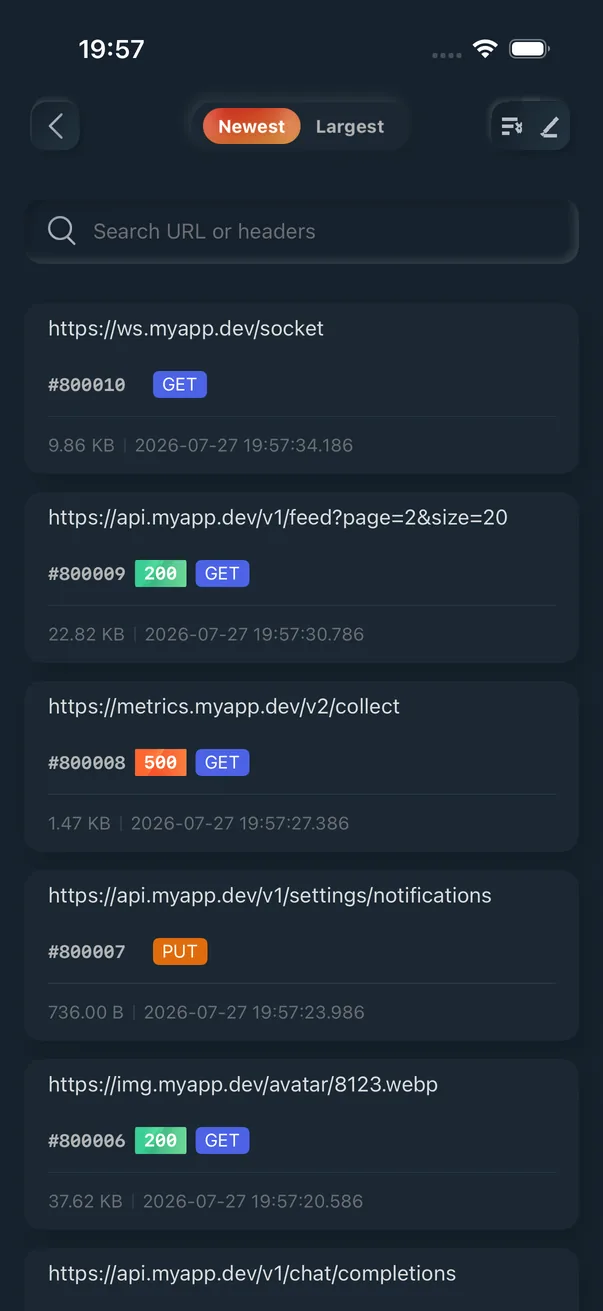
Capture is where everything starts: once on, the app routes traffic through an on-device tunnel and records every request/response for you to inspect.
Tap Start Capture and allow the iOS VPN configuration when prompted.
Use the app you are debugging so traffic appears in Recent Requests.
Open a request to inspect URL, headers, body, status, timing, and TLS metadata.
Apply host or path filters to focus the list.
Tap the big button again to Stop Capture when finished.
Swipe a row for shortcuts:
copy as cURL
add filter
add MITM
New rewrite from this request
export HAR
favorite
delete
Plain HTTP is readable as-is; HTTPS must be decrypted first (see the HTTPS manual), otherwise you only see the host and encrypted bytes.
Request list
What a capture actually shows you
Request and response line: method, full URL, status code, duration and transfer size.
Complete request and response headers, for checking auth, caching and content negotiation.
Request and response bodies, with JSON pretty-printed so fields are easy to diff.
Connection detail: capture mode, flow type (HTTP/1.1, HTTP/2, WebSocket) and the TLS handshake.
A timing breakdown that splits total duration into upload, wait and download.
Filters: keep only the requests you care about
The capture list gets long. Filters cut the noise:
Record only certain hosts: everything else stays out of the list.
Ignore certain hosts: exclude them from the list.
Swipe a row → "Add filter / Record this host" to add quickly.
When you need to capture on the phone itself
Relative to a desktop HTTP proxy, these cases are often missed or expensive (this is not a guarantee that every SDK yields plaintext, or that background traffic is always recorded):
The app uses a networking library or SDK that ignores the system proxy, so those requests never reach a desktop proxy at all.
The bug only reproduces on cellular, while a proxy usually needs the phone and the computer on the same Wi-Fi.
You're debugging away from your desk with no computer to hand.
You need background heartbeats, telemetry and prefetches that still traverse the on-device tunnel (whether they are recorded depends on iOS and the tunnel's state — not guaranteed).
Without installing and fully trusting the local CA under Certificate Trust Settings, the list often shows only the host and encrypted bytes.
The target host also needs to be on the MITM list; existing rows are not retroactively decrypted.
Certificate pinning or QUIC/HTTP3 can still block plaintext — those boundaries and the full install steps live in the HTTPS manual; this page does not repeat the cert tutorial.
No. NetPeek records traffic through an on-device tunnel built on standard iOS APIs—no jailbreak required.
Does iPhone packet capture require a computer?
No. Capture, storage, and inspection run on the iPhone. A computer is optional only when you enable MCP for a desktop AI client over the trusted LAN or USB connection.
Why can I see only the host for an HTTPS request?
HTTPS payloads are encrypted. To inspect plaintext, install and explicitly trust NetPeek's locally generated CA certificate, then add the target host to the MITM host list. Full steps are in the HTTPS manual.
Can I focus on one host or path?
Yes. Filters can narrow the list by host and path, and a request-row shortcut can create a filter from the selected request.
Is capture data uploaded?
Not by NetPeek by default. Capture, storage, and inspection stay on the device. Exports, or MCP after you enable it and share the token, are how captures leave. Crash reports and anonymous statistics stay off until you turn them on under Analytics & Improvements.